Automatic WhatsApp Sending on Invitio: Personal vs. Business and How to Avoid Getting Blocked
Send your invitation to every guest from Invitio via WhatsApp. Compare personal WhatsApp (free, low volume) vs. WhatsApp Business with Meta (higher volume, more stable), plus tips to keep your number safe.
6 min read
•
August 2026
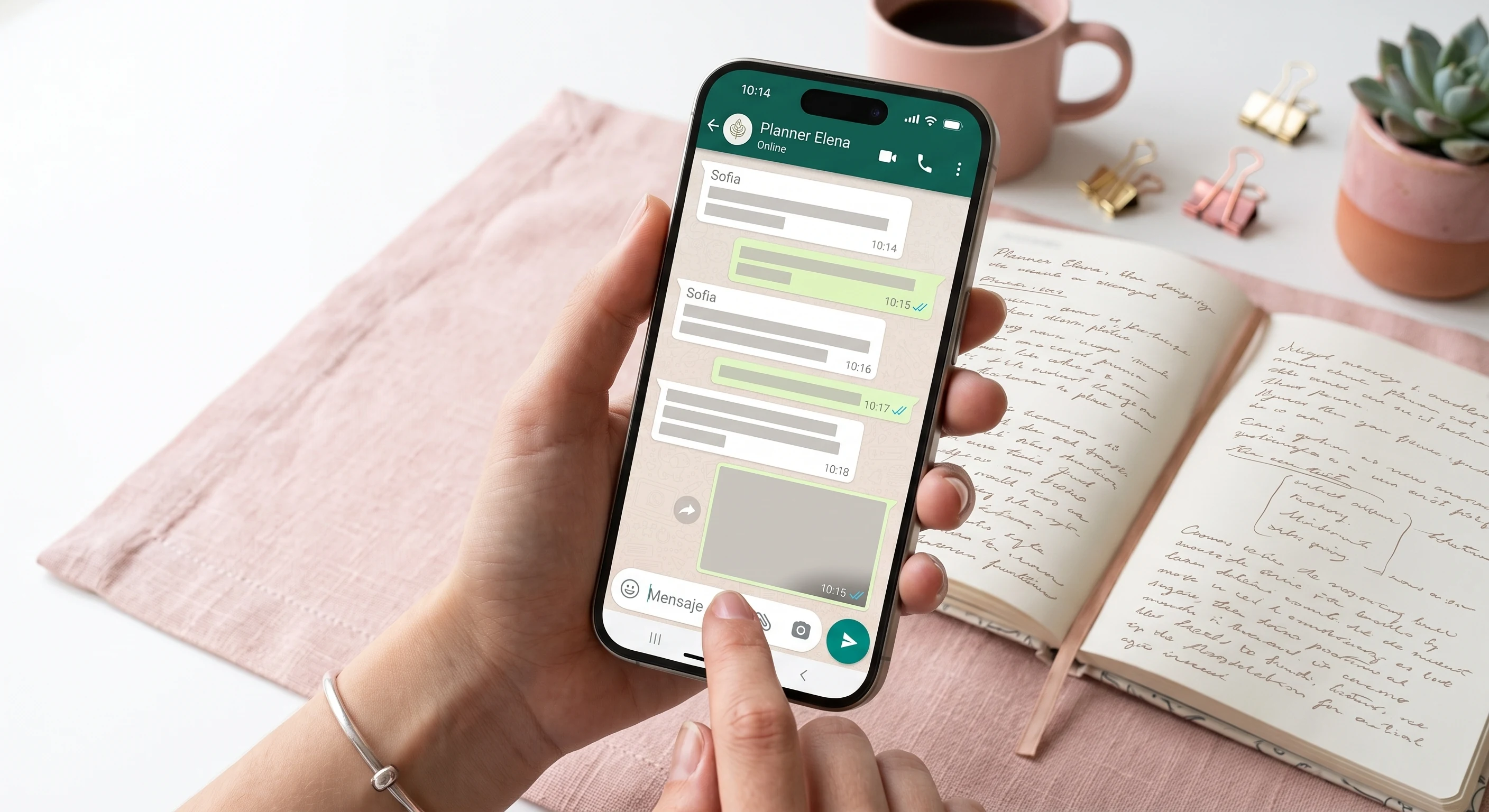
Stop copying and pasting links one by one
Across Latin America, WhatsApp is the natural channel for sharing invitations. But once your list grows — 50, 100, 200 guests — sending the link manually gets slow, repetitive, and error-prone.
From Invitio, you can send your invitation automatically over WhatsApp: select your guests, personalize the message with variables (name, date, time…), and the platform handles the rest. You've got two paths depending on your event: **personal WhatsApp** or **WhatsApp Business with Meta**.
Personal WhatsApp vs. WhatsApp Business (Meta)
Personal WhatsApp
Your everyday cell phone number
- Free on Invitio
- Connect by scanning a QR code
- Customizable message with per-guest variables
- Great for small events and low send volume
- Variable stability — WhatsApp can restrict the number
- Risk of restriction if you send to many contacts in a row
WhatsApp Business (Official Meta)
Official WhatsApp Business API integration
- Per-message cost set by Meta (Invitio doesn't charge extra)
- Highly stable, built for businesses
- No risk of a block like with a personal number
- Meta pre-approved templates for bulk sending
- Great for planners, big events, or frequent use
- Requires linking a Facebook account and a payment method
Which One Should You Use?
**Choose personal WhatsApp** if it's a small event (an intimate birthday, a family baptism, a short gathering), you're sending to a handful of people, and you want to get started right away — no Meta setup, no card required.
**Choose WhatsApp Business with Meta** if you're a planner, run several events a year, have dozens or hundreds of guests, or need to send with confidence without risking WhatsApp suspending your personal line.
You can start with personal and move to Business as your event grows. You're not locked into one from day one.
How Each Option Works
Personal WhatsApp — in 4 steps
Go to Guests → Automatic Sending → choose Personal WhatsApp. Select your guests, write your message, connect your number by scanning the QR code from your phone (WhatsApp → Linked Devices), and confirm the send. Do it from a computer to make scanning easier.
WhatsApp Business — official templates
Connect your WhatsApp Business account with Meta from WhatsApp Integration. Create a template (Invitio provides a sample ready to edit), submit it for Meta's review, and once it's Approved, select it in Send Invitations. Meta requires templates for automated messages — you can't send free-form bulk text.
Automatic Variables
In both modes, you can personalize each message with the guest's name, event date, time, and more. Invitio fills in the variables automatically for every person on your list.
Track It All From Invitio
From your dashboard, see who received the message, who opened the invitation, and who RSVP'd — all from the same dashboard, no need to check WhatsApp checkmarks one by one.
Tips to Avoid Blocks and Suspensions (Personal WhatsApp)
- **Don't send to everyone at once** — spread sends out in small batches with pauses in between. WhatsApp flags mass-sending patterns on personal numbers.
- **Prioritize contacts who have you saved** — sending to lots of numbers that don't know you significantly raises the risk of being reported as spam.
- **Don't close WhatsApp on your phone** while Invitio is sending messages. The linked session needs your app to stay active.
- **Use a clear, expected message** — make sure the guest immediately understands who you are and why you're messaging them (event name, link to the invitation).
- **Avoid resending twice** to the same guest — use Invitio's filters to send only to those who haven't received the message yet.
- **If your event is big, use Business** — don't risk your personal line with 100+ sends. The official Meta integration exists exactly for this.
- **If WhatsApp restricts your number**, wait 24–48 hours before trying again. Forcing sends during a restriction makes things worse.
Tips for WhatsApp Business with Meta
- **Use the Utility category** when creating templates — event invitations usually fit better there than in Marketing.
- **Wait for Meta's approval** before sending (it can take anywhere from minutes to 24 hours). Only templates with Approved status show up in Send Invitations.
- **Set up spending alerts** in Meta Business Manager to keep track of what you're spending per message.
- **Clean up your guest list** before sending — wrong or duplicate numbers are wasted money.
- **Invitio doesn't charge per message** — the cost is set by Meta based on the recipient's country and the template category.
Invitation + Sending + RSVP in One Flow
Invitio isn't just designing your invitation on the canvas — it's the whole event cycle. Design it, send it automatically over WhatsApp, your guests RSVP right from the link, and you see it all on your dashboard — no exporting contacts, no extra apps, no copying links into chats.
Ready to try it? Create your event, add your guests, and head to the Guests section to start automatic sending. For small events, personal WhatsApp is free. For big events, connect WhatsApp Business with Meta and forget about blocks.